
Overview
Use a TikTok script extractor when you have a video and need its original spoken lines. Use a script generator when you have a brief and need a draft. If you want to study how the opening, product and call to action fit together, build a breakdown alongside the extracted words.
Match the input to the result you want
Some pages use “script generator” for a link-based extractor. Check the input field and what the output contains before choosing one.
- Video link
- Look for a tool that returns spoken lines or captions from the existing clip. Check if it includes timestamps and which track or audio it uses.
- Product brief or idea
- Look for a writing tool that suggests a new hook, script, or shot sequence. Give it the audience, product facts, and scenes you can actually film.
- A video you want to study
- A breakdown shows where each shot starts and what it does in the story. Look for a breakdown that separates the spoken words from notes about the visuals and edit.
Compare script tools by what they produce
| Task | Tool | Input and output |
|---|---|---|
| Save existing dialogue | TikScript | A public TikTok link gives you a transcript to check against the video and save as text or timed subtitles. |
| Draft a new script | TikTok Symphony Assistant | Give it a brief with your audience, message and shots you can film. Review the suggested wording as a draft. |
| Plan a script around footage you can shoot | Filming template | Write the shot, spoken line and on-screen text beside each time range. Use it to rehearse before filming. |
Check the extracted words and the new draft
Replay the reference when a name, number, or claim matters. Keep the timestamp with any quote. When reviewing the draft, read it aloud, check its claims against what you can show, and mark the shots you still need.
Save the source link and timestamps, your notes on how the video is built, and the new script you plan to film.
Before filming, check that the first shot sets up the question your product footage answers. Find the frame that proves the result. Read the close and make sure it gives the viewer a next step they can actually take.
Compare the hook, product and CTA in three real videos
TikTok’s Creative Codes guide divides a video into a hook, body, and close. In these examples, the body starts at the first product segment, and the close begins with the call to action. Each segment can contain several shots.
The CarPlay setup starts its product segment at 5 seconds and follows the connection with a working dashboard. The solar-tree reveal starts its product segment at 6 seconds and uses a change from daylight to darkness to show the lights working. The serum routine starts at 10 seconds and gives the application and finish two separate blocks.
The openings take about 18%, 24% and 11% of their respective runtimes. The serum routine has the longest opening in seconds and the smallest share because the demonstration runs for much longer. If you need a short hook, check how soon the proof begins in clips with a similar runtime. The view counts come from dated snapshots of the linked template pages.
- Hook
- Product
- CTA
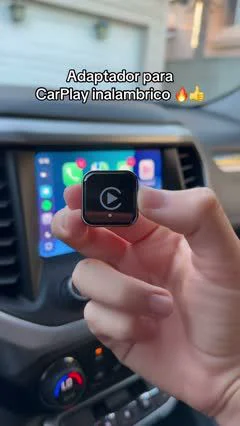
- Hook 00:00–00:05
- Product 00:05–00:14
- Product 00:14–00:24
- CTA 00:24–00:27
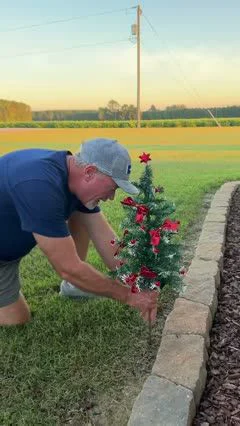
- Hook 00:00–00:06
- Product 00:06–00:14
- CTA 00:14–00:24
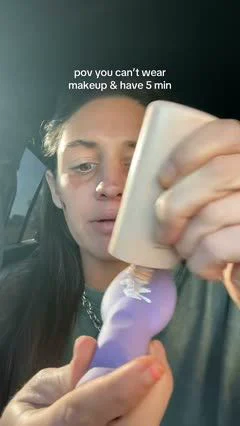
- Hook 00:00–00:10
- Product 00:10–00:36
- Product 00:36–01:05
- CTA 01:05–01:29
Turn an existing video into your own brief
The CarPlay walkthrough opens with the adapter held up against the dashboard. From 00:05 to 00:14, the reference storyboard shows the adapter going in and the phone pairing. Later, the creator shows the connected dashboard in use and closes with a link prompt.
- Record the source
- Keep the video URL and the setup range. Save exact dialogue in its own field only when you can hear or verify the line.
- Write down what the shots do
- The setup shows the steps in use. The next shot gives the viewer a visible sign that the connection worked.
- Draft a brief for your own footage
- For a keyboard pairing tutorial, open with the keyboard at the desk, film the device selection, and show a keystroke appearing on screen. Write a close that fits your clip, such as pointing viewers to the full setup steps.
Sources and verification
The three storyboards link to the reference clips so you can replay the shots behind the comparison. TikTok Creative Codes describes a hook, body and close as a creative framework. Use the examples to study structure and test your own footage against the claim you want to make.