
Overview
Copy the link to the TikTok video, paste it into TikScript, and choose Generate transcript. Copy the words or download them as a TXT file. If the transcript includes timestamps, you can also download SRT or WebVTT. For one short quote, replaying and typing the line may be faster.
Confirm the link and listen to the clip
- Open the actual post. On mobile, use Share and Copy link. On desktop, you can also copy the video page address.
- Open the copied link and confirm the creator and video match. If it leads to a profile or collection, open the individual video and copy that URL.
- Listen to a few seconds with speech. If captions are available, turn them on and check whether they follow the words you hear. A title or price fixed to the frame belongs in separate visual notes.
Generate the transcript from the video link
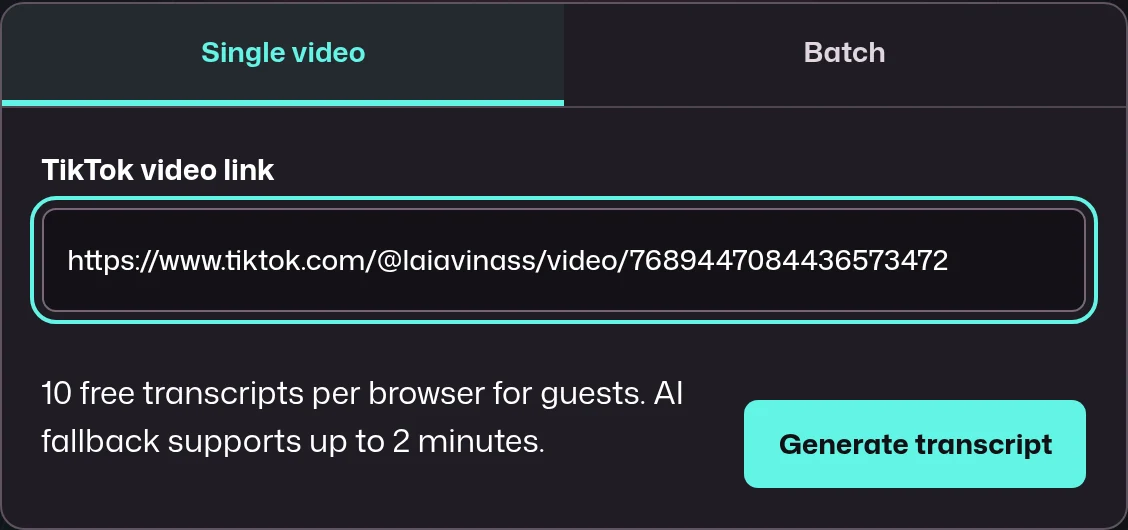
- In the TikScript generator, select Single video and paste the link from the post. Choose Generate transcript and wait for the result.
- TikScript starts with a usable caption track when available. If there is no usable track, it tries speech recognition for videos up to two minutes. A longer video can still return an existing caption track.
- Choose Copy text for a quote or TXT to save the transcript as a file. If the transcript has start and end timestamps, SRT and WebVTT are available. For a clip without audible speech, use the video to record any important on-screen details.
Choose the method that fits the clip
- Use the video’s existing captions
- If your tool can read the captions, check that the words match the audio and that the transcript includes timestamps if you need them. Try speech recognition or type the passage by hand if the tool cannot read the captions.
- Transcribe a short passage by hand
- For a quote or a few lines, replay the passage and start your note with the timestamp. Include a little context before or after the quote if its meaning depends on what came next.
- Use speech recognition on accessible audio
- For a longer clip without a usable caption track, start with audio or an original file you have permission to process. Set the spoken language if your tool offers that choice. Review the result against the recording, especially over music or overlapping speakers.
Get the spoken words when there is no caption track
If you filmed the video, find the original recording or the export from your editor. Play the section you need before choosing a method. A clear voiceover can go into speech recognition. For a few sentences over loud music, replaying and transcribing by hand gives you time to check each word.
If someone else owns the clip, ask for their caption file, script or an audio copy you can use. A script may differ from what they said on camera. Keep a note of whether your text came from the final audio, the posted captions, or the creator’s draft.
Where speech overlaps or drops out, write down the range and mark the uncertain words. Keep separate lines for speakers when you can tell who is talking. If the track cuts off at 00:38 and the speaker continues, replay that passage and label any words you add manually.
Check three moments before saving
- Match the first complete line to the opening audio. If it starts in the wrong place, check the source video and track.
- Replay a name, number, or product variant near the middle. Correct the word while you can still find it in the recording.
- Find the last spoken sentence in the text. If it disappeared, check where the caption track or recognition output ends and fill the gap from the audio.
Save the words with a way back to the video
For research notes, save a TXT file and record the original link and any timestamps you want to revisit. For subtitles, use SRT or WebVTT to keep the start and end timestamp of each line.
For a clip with little or no speech, note the title, product labels, and important sounds where they occur. That record can still be useful for studying the video.
A useful note keeps the creator, video URL, time range and exact wording together. Add your interpretation on a separate line. If you return to the video later, you can check both the quote and the context without searching the whole clip.
Read a caption and its timestamps
In one test on a public skincare clip, the caption provider returned a WebVTT file. The line shown here starts at 1.180 seconds and ends at 2.560 seconds, so it would stay on screen for 1.380 seconds.
For a quote, keep the video link and the start timestamp so someone else can find the line. For subtitles, keep both timestamps.
1.180–2.560 sGood morning, girlies!
Sources and verification
The example comes from a single caption retrieval on the linked skincare video. Open the source and replay the cue to check the words and the 1.180–2.560 second range. W3C guidance explains when to start from a caption track and when to transcribe from audio.