
Overview
To read along in TikTok, check whether the video offers English captions. To save an English transcript, paste the public video link into TikScript and select English before generating. Compare the translation with the original to check names and phrases.
Choose what you need from the translation
- Read along in the app
- Open the individual video and look for captions or a translation option. TikTok has offered translations for captions, descriptions, and text stickers. Check what the specific post and your app show.
- Keep an English transcript
- Select English under Output language in TikScript, then generate the transcript. Switch to Original if you need to check a phrase. Save the English version as TXT for reading or notes.
- Put English subtitles on a video
- Keep the start and end timestamps for each translated line. Export SRT or WebVTT when timestamps are available, then load the English file as a separate subtitle track.
Get the original words before translating
- Listen to a few seconds and identify the spoken language. Captions, the post description and words drawn into the frame can each be in a different language.
- Use the original-language caption track if your tool can access it. If a usable track is missing, start with an authorized audio or video file. For one short passage, transcribing by hand may be quicker than preparing a whole file.
- Replay names, numbers and technical terms before translating. If you cannot make out a word, mark the uncertain segment and keep its timestamp for review.
Check the source language and the audio output
For a Russian-language clip, save the Russian words first. When an English spelling of a place or person looks uncertain, check the spelling in the video or post and keep the original in your notes. For mixed-language clips, mark where the language changes before reviewing the translation.
English captions let you read while the original audio plays. If you need English audio, use the reviewed translation as a voiceover script. Time the recording against the shots and replay the result where the words describe something happening on screen.
Use Google Translate for copied text or a screenshot
- For spoken dialogue, copy the original transcript and paste that text into Google Translate. Choose English. Keep the original time ranges next to the translated lines if you will use them for subtitles.
- For a label in the picture, pause on a readable frame and save a screenshot. Open Images in Google Translate and select the screenshot. Check the result against the picture, especially around product names or small text.
- For a comment, copy the specific text you want to translate if your app offers selection. In TikScript, the video link is used to retrieve spoken or timed caption text.
Translate text that appears only in the picture
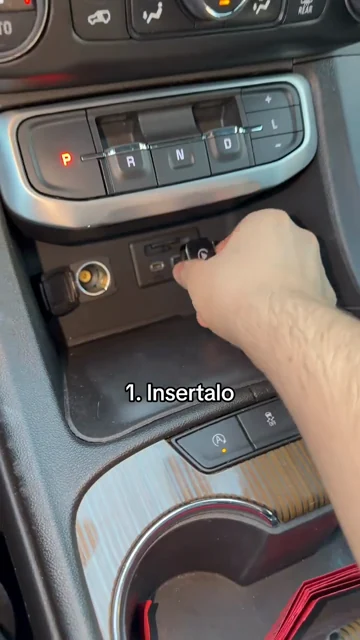
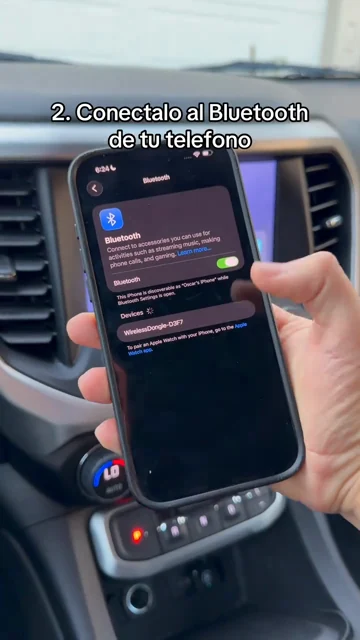
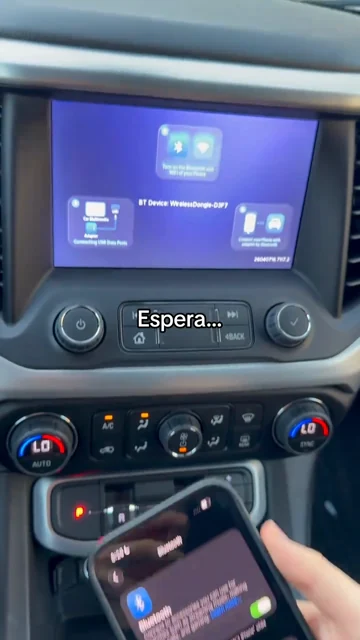
In a wireless CarPlay walkthrough, three Spanish overlays guide the viewer through setup. At 6.2 seconds the adapter is held over the USB port. At 10.2 seconds the phone shows the Bluetooth menu. At 12.2 seconds the dashboard asks the viewer to wait while it connects.
The original wording “Insertalo” leaves the object implicit. “Plug in the adapter” names the visible part and tells the viewer exactly what to do. Keep Bluetooth and CarPlay as product terms. If you also need the spoken words, transcribe the audio separately.
- 06.2 s
- 10.2 s
- 12.2 s
Match the English to the original timestamps
We picked three time ranges while the Spanish labels were visible. The pairing instruction has about two seconds on screen. “Pair it with your phone” fits, and the Bluetooth menu shows how to connect.
For reading, you can keep the full instruction “Pair the adapter with your phone via Bluetooth.” For subtitles, translate the full sentence first, then split it into lines that fit the original timestamps. Check names and numbers before shortening a line.
| Time range | Spanish | English |
|---|---|---|
| 05.200–08.000 s | 1. Insertalo | 1. Plug in the adapter. |
| 09.500–11.600 s | 2. Conectalo al Bluetooth de tu telefono | 2. Pair it with your phone. |
| 12.200–13.500 s | Espera… | Wait… |
Export a Russian TikTok in Russian and English
On November 26, 2026, we submitted the linked 12-second public clip to TikScript as a guest and requested English. We downloaded the original and translated WebVTT files and compared them. Both files contained two cues with identical start and end times.
The first English line reads awkwardly. Replay that segment and check the Russian against the audio before revising the English. To repeat the export, choose Original, click WebVTT, then switch to English and click WebVTT again.

| Time range | Russian transcript | English output |
|---|---|---|
| 00:00:00.091–00:00:05.921 | я же вылюбила как тогда обнять. | I loved how to hug then. |
Review the English and save it as a separate file
Save the three subtitle entries below as carplay.en.vtt. Load the file in a compatible player and set the track language to English. Replay the setup and check that each instruction appears when the action happens.
If the Spanish is part of the picture, place the English where both lines can be read. For reading or research, save the original and translation side by side with the video link and timestamps.
WEBVTT

00:00:05.200 --> 00:00:08.000
1. Plug in the adapter.

00:00:09.500 --> 00:00:11.600
2. Pair it with your phone.

00:00:12.200 --> 00:00:13.500
Wait…Sources and verification
The CarPlay example pairs visible Spanish instructions with English lines written for the same time ranges. The Russian example shows what TikScript returned in one guest test. We checked both WebVTT files for matching cue boundaries. Assess the words and meaning separately by replaying the source. TikTok documents its in-app options, Google documents image translation, and W3C explains how to translate subtitles.