
Overview
To download the spoken script from a public TikTok, paste its link into TikScript and generate a transcript. Choose TXT to save the words. When the result has timestamps, choose SRT for a compatible editor or WebVTT for a player that supports it.
Download your own TikTok transcript
- Paste the individual post link into Single video and choose Generate transcript. Look below the form for the result.
- Choose TXT to save a file or Copy text to paste the words into your notes. When the result shows timestamps, choose SRT or WebVTT to keep the time each subtitle starts and ends.
- Open the file before you share it. Check a line against the original post. Keep the post URL and file together if someone else has to verify a quote.
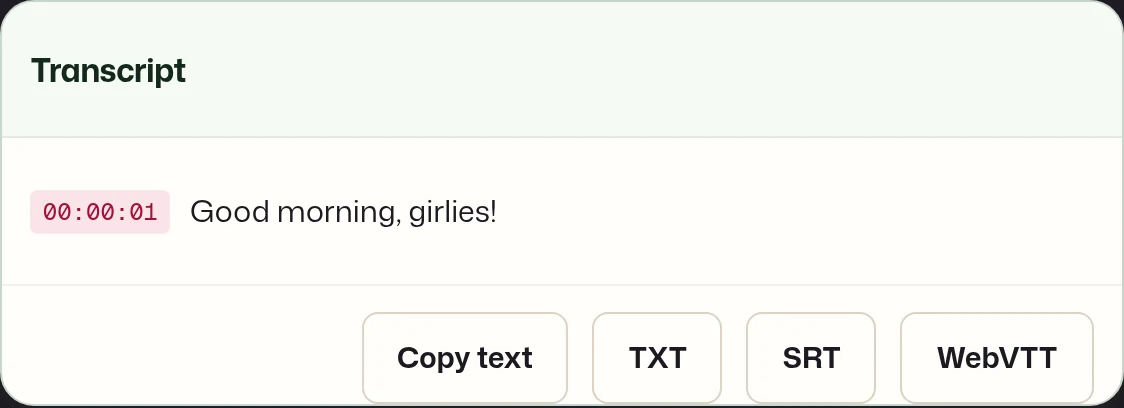
Choose TXT, SRT, or WebVTT
- TXT for notes and quotes
- TikScript saves the words in reading order as plain text. Choose SRT or WebVTT if you need the timestamps in a subtitle file.
- SRT for compatible video editors
- Each subtitle entry, also called a cue, has a number, a start and end timestamp, and the text. Leave a blank line between entries, and use a comma before milliseconds.
- VTT for compatible web players
- The first line of a WebVTT file reads WEBVTT. Each subtitle entry has timestamps that use a period before milliseconds.
Choose a file for notes, YouTube, or a web player
For a quote sheet, use plain text. Keep the link and a timestamp beside the quote so a reviewer can replay it. Choose a subtitle file when the words need to appear during playback.
For YouTube, its supported-formats guide accepts basic SubRip files in plain UTF-8. If you are targeting an editor instead, check its supported subtitle formats before export. For your own web player, WebVTT is the format defined for an external HTML text track.
To turn plain text into subtitles, split the text at natural pauses in a subtitle editor. Add start and end timestamps, then play the video to check when each line appears. Export a new file in the format you need.
Find out why a subtitle file will not import
- The editor rejects the file
- Open it in a text editor and check the filename extension, the first line, and the timestamps. If the format is wrong, export a new file in a format your editor accepts.
- All captions are early or late by the same amount
- Check for time added or removed before the first subtitle. Measure the difference near the end too. If it matches, shift the whole subtitle track by that amount.
- The first caption lines up and later captions drift
- Compare two later subtitle lines with the audio. Check for a cut or a speed change between them. Adjust the timestamps to match the new edit, then play it back.
Check the first and last subtitles after importing
Import the subtitles into the video version you plan to publish. Play the first and last lines. Note how early or late each subtitle appears compared with the audio.
If you add 0.600 seconds to the opening, a subtitle originally at 1.200 seconds should start at 1.800 seconds. If a later subtitle is also 0.600 seconds early, shift the whole track forward. If only the later line is off, check for an edit between the two lines.
After correcting the timestamps, play a line near a cut in the middle and check for overlapping subtitles. Save the subtitle file with the edit it matches.
Compare the same words in all three formats
The practice line below starts at 1.200 seconds and ends at 4.400 seconds. SRT and VTT keep both timestamps. TXT contains the same words in plain text.
TXT
Pick one video you want to save.

SRT
1
00:00:01,200 --> 00:00:04,400
Pick one video you want to save.

VTT
WEBVTT

00:00:01.200 --> 00:00:04.400
Pick one video you want to save.1.200–4.400 sPick one video you want to save.4.600–8.100 sCopy the link and keep it with your notes.8.600–12.300 sWrite down the line you want to revisit.12.700–16.800 sAdd a timestamp so you can find it again.
Sources and verification
Compare the downloadable practice files with the same line in the example. YouTube documents its supported SubRip format, and the W3C specification defines the timing syntax for WebVTT. Test the file in your destination with the final cut of the video.