
Overview
To copy a TikTok post caption, expand the description by the creator’s name and select the text in a browser where possible. For spoken words, use the caption track or transcribe the audio. If the line is part of the picture, pause where you can read it and save the wording with its timestamp.
Copy the caption you meant to save
- Copy the post caption
- Open the individual post, expand its description and record the words and post URL. If text selection is unavailable in the app, try opening the post in a browser. Include hashtags if they carry the context you need.
- Copy a line from playback captions
- Pause where the line appears and note its timestamp. Export SRT or WebVTT if you need to keep the timestamps for several lines.
- Keep a price or headline fixed to the picture
- Pause on a readable frame, copy its wording, then record when it appears. Read labels and playback captions separately when the frame contains both.
Identify the text by where it appears
- Post description
- Look near the creator’s name and post details. This is where an offer, hashtag or context for the whole clip may appear. Save it with the post URL.
- Captions and subtitles
- These appear at set points while the video plays. Accessibility captions can say who is speaking and identify important sounds. Subtitles can also translate the dialogue into another language.
- Text in the video frame
- A headline, name tag, or price may be drawn into the picture. Pause on the frame and record what is visible and when it appears.
- Transcript
- A transcript is written text you can read independently of playback. A descriptive transcript can also include important visual information.
Copy a description or words in the picture on your phone
- For a post description, expand it first. Try to select the text in your mobile browser. If it cannot be selected, take a screenshot of the expanded description.
- For words in the image, pause on a readable frame and take a screenshot. On iPhone, open the screenshot in Photos, use Live Text to select the words, then tap Copy. On Android, open the screenshot in Google Photos and use Lens to select and copy the text.
- Check spelling, numbers and punctuation against the picture. Store the original post link with the copied text. For on-screen words, add the time where you paused. For spoken dialogue, use the transcript instead of repeating the screenshot process for every line.
Check what a viewer misses with the sound off
In a 2024 CHI study, seven of 300 sampled open-captioned TikToks described non-human sounds such as noises made by animals or objects. The sample included general-interest videos and videos tagged around Deafness and disability. The researchers also interviewed nine people who rely on captions for access.
Try watching your own clip muted in the app. A timer, bell, or knock may explain why a person reacts. Add a short sound cue when it matters to the story. Check the lower and right edges of the screen where the app’s controls may cover text.
Check the translated track separately if you provide one. Leave room for longer lines and replay the video with both tracks to verify names, amounts and timing.
Save the text that answers your question
To quote the creator, replay the spoken line and keep its timestamp with the URL. To follow the recipe, keep the quantity on screen alongside the spoken instruction.
To make the clip accessible, include important sounds and describe visual information the viewer needs. For subtitles in an editor, use SRT or WebVTT to keep each line’s timestamps.
Identify an overlay in a real TikTok
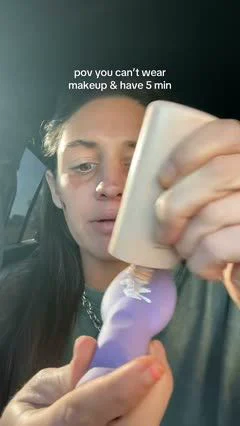
A tinted-serum routine gives three ways to describe the same opening. The post description pitches the product. The on-screen text sets up a five-minute deadline. The video’s English captions preserve the timing and wording of the dialogue.
If you are documenting the hook, keep the on-screen text and a frame. If you are quoting the creator, save the caption line with its timestamp and replay it to confirm the words. You can keep both in one note with the post link.
- Post description
- “No makeup? No time? Don’t worry.” appears in the text attached to the post.
- Playback captions
- The English caption at 1.461–3.741 seconds includes “five minutes, and they don’t even allow makeup.”
- On-screen text
- The opening image carries “pov you can’t wear makeup & have 5 min” over the video.
Separate the words in a meal-prep clip
In this fictional example, the creator posts a meal-prep clip with a title over the first shot. At 00:04, they say “Start with the rice” while a label shows a quantity.
- Post description
- “Sunday lunch for the week #mealprep” goes in the post notes.
- On-screen text
- “Sunday prep” appears in the opening shot. At 00:04 the picture shows “2 cups,” which belongs in the visual notes with its time.
- Spoken line
- “Start with the rice” goes in the transcript. In a subtitle file, give it the start and end times of the line in the audio.
Sources and verification
Replay the original serum clip to locate the description, timed caption and on-screen overlay. W3C guidance defines accessible captions and descriptive transcripts. The CHI study reports observations from its 300-video sample.